
Configurable project checking
IngeniChecker
Check the project. Review the exceptions.
IngeniChecker reviews a selected Autodesk Inventor assembly and selected drawing files against configurable checks. Choose the checks that apply, run the project check, then review and filter the potential issues in Ingeni.
Selected project context
The Assembly and Drawings, Checked Together
The drawing set is selected deliberately for each run.
Selected top-level assembly
IngeniChecker reads the assembly and its referenced components.
Selected Inventor drawings
The user chooses the drawing files to evaluate with the assembly.
IngeniChecker checks against the drawing files selected for the run. If a relevant project drawing is not included, findings such as missing drawings are evaluated against that selected drawing set.
Configurable scope
What IngeniChecker Checks
Checks can be enabled or disabled to suit the project and company workflow. The selected configuration determines what each run evaluates.
Assembly information and structure
Sick constraints, assembly name, description, Design Status, Revision, missing drawings and drawing numbers, required quantity, BOM structure, duplicate file names and suppressed occurrences.
Part information
Generic material, part name, description, Design Status, Revision, missing drawings and drawing numbers, and required quantity.
Flat patterns and drawing coverage
Whether relevant sheet-metal parts have a generated flat pattern, are shown in a selected drawing and have the expected drawing reference relationship.
Sheets, resources and documentation
Drawing checks cover sheet condition, drawing resources, components and views, annotations, revision information and parts lists.
Drawing checks
Review Drawings by Meaningful Category
Selected drawings are evaluated through focused groups, keeping a broad check set understandable.
Sheet state
- Empty sheets
- Excluded from printing
- Excluded from counting
Required resources
- Missing borders
- Missing title blocks
- Missing revision tables
Drawing coverage
- Redundant or duplicate components
- Missing views
- Level of detail
Annotation condition
- Dimension overrides
- Detached dimension links
- Balloons and detached annotations
Information alignment
Compare relevant revision-table information with Revision and Design Status information. Sheet names can also be checked for expected drawing-number and revision information.
Parts-list expectations
- BOM or parts-list presence
- Expected style
- Overridden data
Expected resources
Check Against Expected Drawing Standards
When relevant checks are enabled, expected drawing resources can be selected for comparison.
Assembly and part views
Compare a drawing’s title block with the selected expected title block. Separate selections are available for assembly views and part views.
Assembly and part styles
Compare parts lists with selected expected styles, with separate style selections for assemblies and parts.
Expected resources are loaded from Inventor drawing resources available through the configured drawing-template environment. The workflow does not require a vendor-supplied drawing standard.
Settings and visibility
Configure the Project Check
Build a relevant check set, retain it for later use and control which component and finding lists remain visible during review.
Choose the enabled rules
Enable or disable checks individually, or use Check All and UnCheck All. Checker settings are saved for later use.
Select comparison resources
Choose expected title-block and parts-list styles where the relevant comparisons are enabled.
Focus the Review
Adjust visible component and finding lists for Library parts, Content Center parts, purchased, reference, phantom and inseparable items.
Exclude Options affect visibility. They do not mean those components are never collected or analysed internally.
Run the check
Check This Project
The command becomes available once the required assembly and drawing selections exist.
- Select one Inventor assembly.
- Select one or more Inventor drawings.
- Configure the required checks.
- Choose applicable Exclude Options.
- Select Check this Project.
- Review the findings.
IngeniChecker displays the elapsed checking time when the run completes.
Results remain in the IngeniChecker interface for review; the current workflow does not generate a separate Checker report file.
Results
Review the Findings
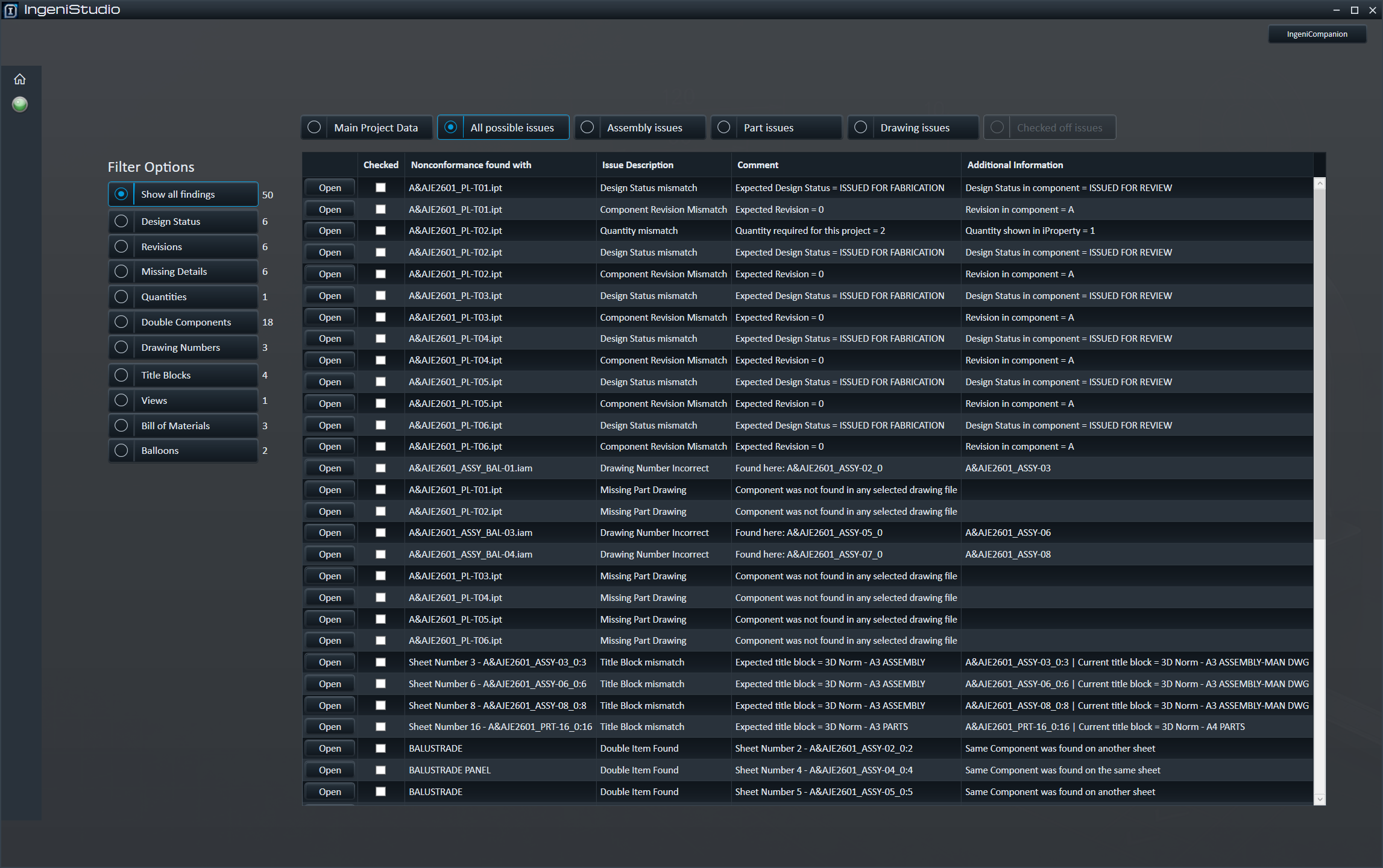
When findings exist, IngeniChecker presents them as potential issues for user review—not as automatic engineering decisions.
Main Project Data
Review collected project information, including the selected assembly’s Design Status, Revision and Quantity.
Issue views
Use All Possible Issues, Assembly Issues, Part Issues and Drawing Issues to investigate findings by document type.
Checked Off Issues
Marking a finding as checked moves it from active findings into Checked Off Issues. It does not modify or repair the Inventor model or drawing.
A finding can identify the affected component or sheet and provide an issue description, comments and additional information. The user decides whether action is required.
Focused investigation
Filter the Results
Relevant filters show matching counts so a large finding set can be narrowed to the categories under investigation.
- Names
- Descriptions
- Design Status
- Revisions
- Quantities
- Drawing numbers
- Generic materials
- Sick constraints
- Sheet metal
- Sheet conditions
- Borders
- Title blocks
- Revision tables
- Components
- Views
- Dimensions
- BOMs
- Balloons
- Level of detail
- Detached annotations
Follow-up
Go Directly to the Related Document
Move from a finding to the Inventor document that needs investigation.
Findings can be used to open the related Inventor document for follow-up.
For drawing findings, IngeniChecker attempts to activate the relevant drawing sheet and otherwise opens the drawing.
After correcting documents or changing the checking scope, run the check again to review the updated result set.
IngeniChecker identifies and organises potential issues. It does not automatically fix them, and engineering judgement remains with the user.