

Model Browser organisation
IngeniFolders
Organize the Inventor Model Browser.
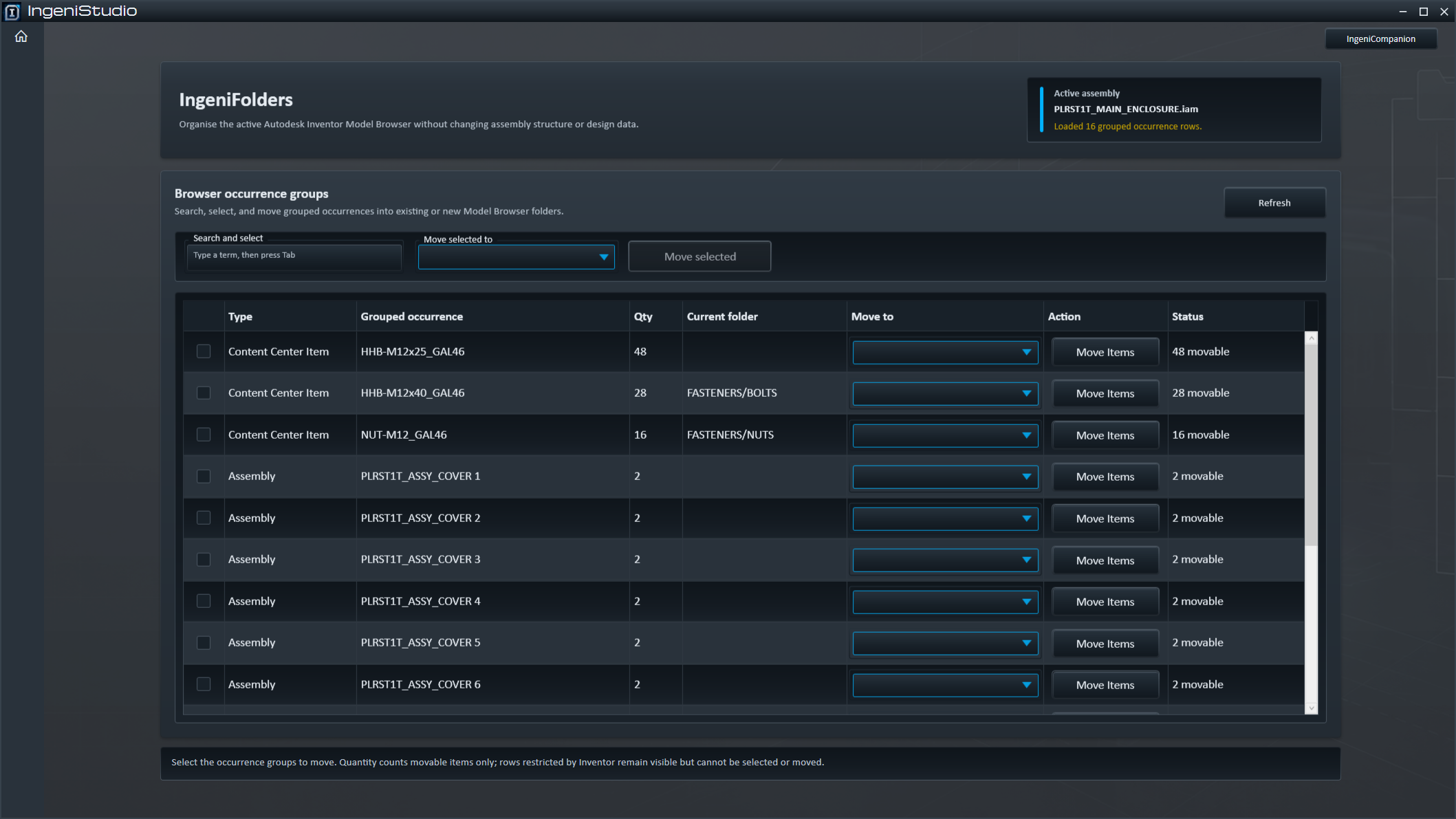
IngeniFolders organizes assembly occurrences and patterns in the Autodesk Inventor Model Browser. Create browser folders and move individual groups or selected groups into existing or new destinations.
Browser folders, not disk folders
Organize the Browser Without Moving Files
The distinction between Model Browser organisation and filesystem organisation is fundamental.
IngeniFolders works with folders inside Inventor’s Model Browser. It does not create folders on the computer and does not move component files on disk.
The purpose is to organize how assembly occurrences are presented in the Model Browser without changing the assembly structure or design data.
Focused workflow
Load → Select → Choose Destination → Move
Load the active assembly’s browser groups, choose what to organise, select a destination, then run the relevant move action.
Read the active assembly
Load grouped occurrences and patterns from the active Inventor assembly.
Choose one or several
Work with an individual group or select multiple groups for a batch.
Choose the browser folder
Select an existing Model Browser folder or create a new one.
Run the move action
Move the chosen occurrence groups or patterns into the selected browser folder.
Assembly context
Works With the Active Assembly
IngeniFolders operates on the active Autodesk Inventor assembly, including supported subassembly edit-in-place contexts. Refresh after changing context to review the available groups and destinations.
Folder actions are unavailable and the module reports the condition when no assembly document is active.
Assembly browser data
Review the Browser Groups
Review the source grouping, destination choice and operation outcome before and after browser-folder changes.
Group and name
See the group or type and its grouped display name. Pattern groups are identified separately.
Quantity and current folder
Review quantity where applicable and the group’s current Model Browser folder.
Destination and status
See the selected destination and the status reported for an individual move.
Not every displayed row is necessarily movable. If an item cannot be resolved as movable, the interface can disable it and provide a restriction reason.
Movement options
Move One Group or Several Together
Single-row and batch actions share the same deliberate destination-then-action pattern.
Move an Individual Group
Assign a destination with the row’s Move to control, then use the applicable action such as Move Item, Move Items or Move Pattern. Choosing the destination alone does not move anything.
Move Multiple Groups Together
Select several rows, choose one destination with Move selected to, then use Move selected. The chosen groups share that destination; the batch is not presented as an all-or-nothing transaction.
Selection aid
Search and Select
Select occurrence groups whose displayed names match the entered text.
Matching rows remain in the list and are selected so they can be acted on together.
Destinations
Create Browser Folders
Create a destination from the same controls used to choose existing Model Browser folders.
- Open a destination dropdown.
- Choose Create New Folder.
- Enter the folder name and confirm.
- The new or existing folder becomes the selected destination.
- Use the relevant move action when occurrences should be placed into it.
Fabrication/PlatesSlash-separated names can define nested browser-folder paths. These are not filesystem paths.
If the requested path already exists, IngeniFolders reuses that browser folder rather than creating a duplicate.
Folder creation details
Create the Destination First, Move When Ready
Confirming a folder name creates or selects the destination. It does not itself move occurrences.
Create without a selection
A browser folder can be created without first selecting groups, allowing an empty Model Browser folder.
Reuse available destinations
Existing Model Browser folders remain available for selection.
Below Origin where permitted
New top-level folders are positioned below Origin when Inventor permits the requested browser placement.
Refresh and confirm
Review the Resulting Browser Assignment
Refresh reloads the displayed assembly groups and their current browser-folder assignments.
Batch movement supports cancellation after the current item; completed moves remain in place. Review the native browser and save the assembly to retain the intended arrangement.
Individual move operations report their result through the row status. After a batch operation, the displayed list is refreshed.
The refreshed Current folder information provides the resulting browser assignment for review; an overall batch message is not presented as a verified count of every occurrence moved.