

Inventor model output
IngeniSTEP
Export Inventor models as STEP files.
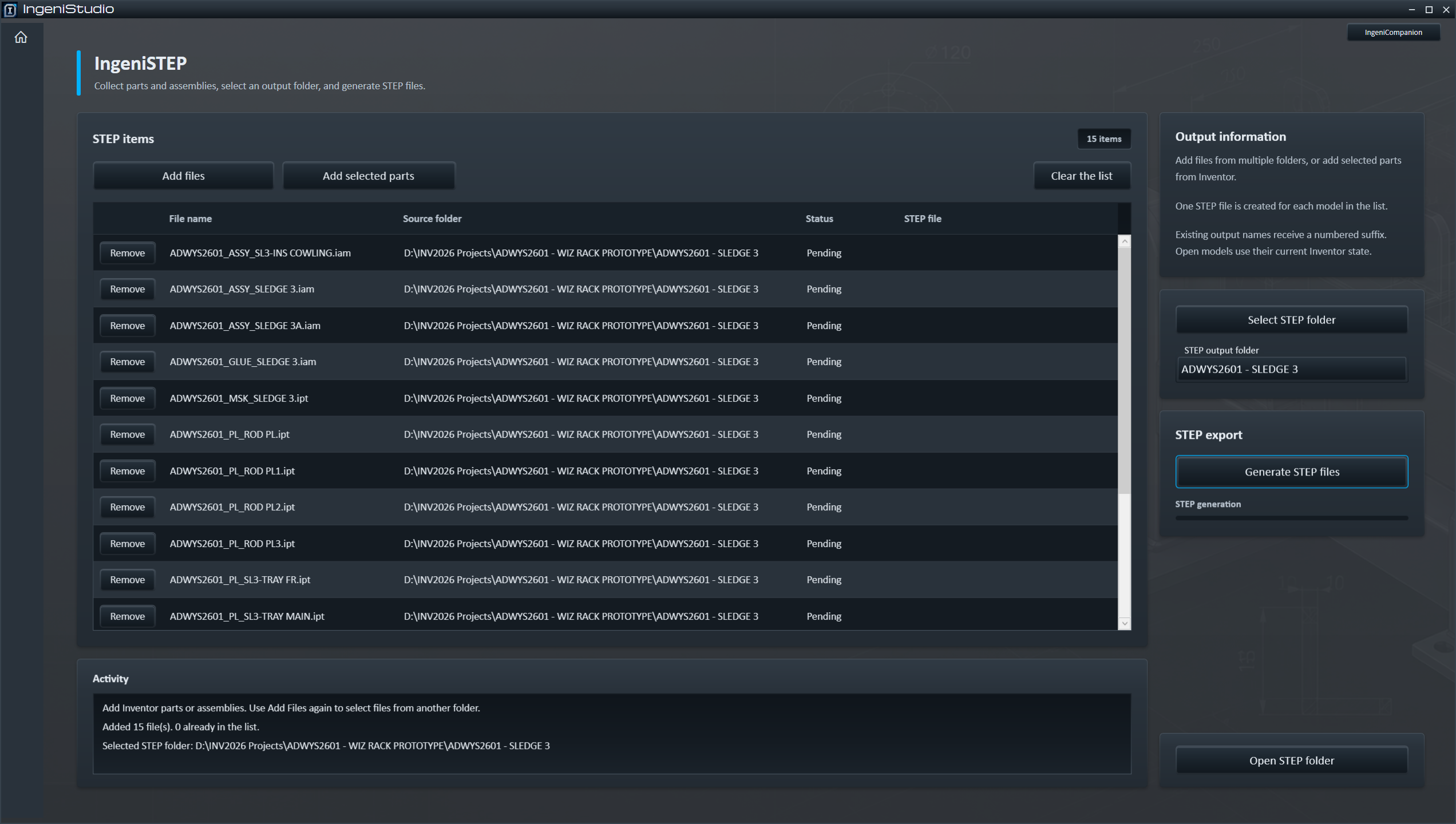
IngeniSTEP creates STEP files from Autodesk Inventor parts and assemblies. Add existing model files or collect part occurrences selected in an open Inventor assembly, choose an output folder, and generate a STEP file for each item in the list.
Core capability
One STEP File for Each Listed Model
Build a list of Inventor models, choose one destination, and export the list as individual .step files.
Parts and assemblies
Add Autodesk Inventor part (.ipt) and assembly (.iam) files.
Batch collection
Select multiple source files at once, then add more models from other folders when needed.
Selected parts
Collect referenced part files from part occurrences selected in an active Inventor assembly.
One destination
Generate one STEP file per listed model in the selected output folder.
Model collection
Build Your STEP Export List
Add saved models directly or collect the part occurrences selected in Inventor.
Add files
Select one or more existing Inventor .ipt and .iam files. Use Add files again to include models from another folder.
Add selected parts
When Autodesk Inventor is running with an assembly active, select part occurrences and add their referenced part files to the export list.
- Remove individual entries or clear the complete list.
- The same full source path is not added more than once.
- Selected part occurrences must reference saved, accessible part files.
Review and destination
Review Before You Export
The export list keeps the source and result visible before and during generation. Review the entries and remove anything that should not be included.
Know what is listed
Each row shows information including the source filename and source folder.
Follow each result
Individual rows report export status and successful exports show their resulting STEP path.
Choose one folder
All files in the batch are written to one selected STEP folder. That folder must still exist when generation starts.
Batch workflow
Generate STEP Files
- Open IngeniSTEP.
- Add Inventor models or selected part occurrences.
- Review the export list.
- Select the STEP destination folder.
- Choose Generate STEP files.
- Review the results.
IngeniSTEP attempts the listed models in sequence, displays progress, and updates each row as it works.
Successful and failed exports are reported, followed by a final exported and failed count. A failed item does not normally prevent the remaining listed items from being attempted.
Predictable output
File Naming
Each output name starts with the source model filename without its Inventor extension and uses .step as the output extension.
The output is placed in the selected STEP folder. If the intended name already exists as either a file or folder, IngeniSTEP selects an available numbered name instead of replacing the existing output. Numbering starts with (2).
Bracket.step
Bracket (2).step
Bracket (3).step
Inventor document state
Existing and Open Models
IngeniSTEP respects whether a source model is already open in Autodesk Inventor.
Current document state
A model that is already open in Inventor is exported using its current Inventor document state, including unsaved edits and the active model state.
Opened for export
A model that is not already open is opened for export and then closed without saving.
Active assembly required
Collecting selected parts requires Inventor to be running, an assembly to be active, and the selected part occurrences to reference saved, accessible part files.
Results and resilience
Results for Every Item
Progress and outcomes remain visible throughout the batch.
IngeniSTEP reports successful exports, warnings, and failed items. A successful export with a warning may be shown as Exported with warning and counts as exported in the final summary.
An assembly is one export request; its components are not separately listed as individual STEP files unless you add them. Export uses Inventor’s translator-supplied options.
After translation, IngeniSTEP checks that the expected output file exists and is not empty. Successful rows show the resulting file path; this check does not make a broader guarantee about STEP-file validity.
Reopen representative STEP files and confirm their geometry and assembly contents before issue.
Open STEP folder opens the selected destination after the user chooses it. The folder does not open automatically.