
Drawing sheets alongside Inventor
IngeniSheets
Visual drawing sheet management for Autodesk Inventor.
Open IngeniSheets from IngeniDrawings. It provides a visual workspace for navigating, organising and reviewing Autodesk Inventor drawing sheets. It brings sheet previews, sheet management, missing balloon checks and assembly parts-list sorting into one window alongside Inventor.
Designed for Autodesk Inventor 2026. Works with Inventor IDW and DWG drawing documents.
Visual sheet navigation
Navigate Drawings Visually
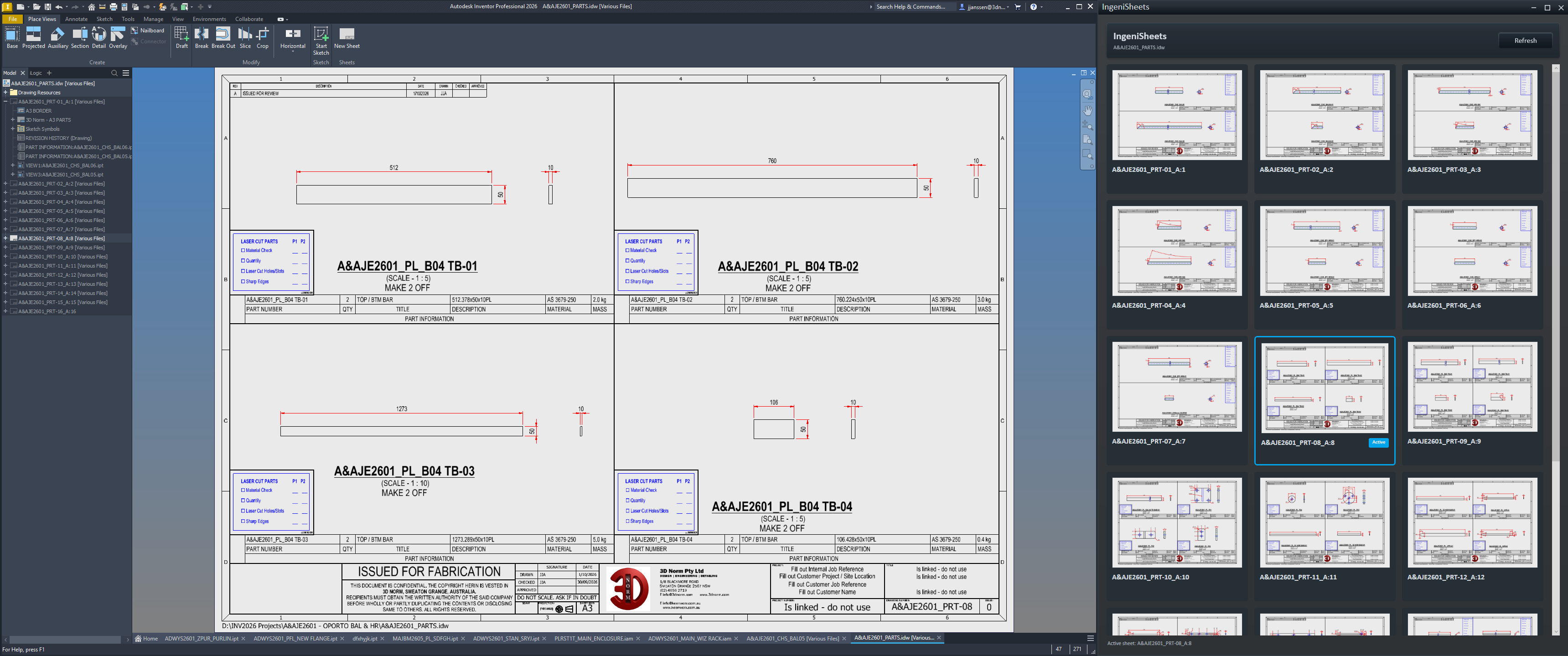
Drawing-sheet preview tiles show each sheet’s name and a clear indication of the active sheet, helping you navigate multi-sheet drawings.
Activate a sheet from its tile
Clicking a tile activates that sheet in Inventor, fits it to the graphics window and brings its entry into view in the Inventor drawing browser.
Follow the Inventor selection
The active-sheet indicator follows sheet selections made in Inventor. The tiles provide a visual navigation workspace; drawing content continues to be edited in Inventor.
Drawing sequence
Reorder Sheets Visually
Drag a sheet tile onto another tile to move it to that position.
IngeniSheets changes the actual sheet order in the Inventor drawing and then displays the resulting sequence. The displayed tile order represents the drawing’s sheet order.
Sheet review
Find Missing Balloons
IngeniSheets identifies visible assembly parts-list rows that Inventor reports as not ballooned.
The missing count appears directly on the corresponding sheet tile, helping locate sheets that need attention without inspecting every sheet individually.
- Hidden parts-list rows are excluded from the count.
- The check uses Inventor’s reported balloon status. It does not independently determine which components require a balloon or validate balloon positioning, appearance or overall drawing correctness.
- When the check is unavailable, IngeniSheets reports it as unavailable.
Drawing information and previews
Refresh Drawing Information
Choose a full drawing refresh or update the preview of one selected sheet.
Refresh
Use Refresh to reload the drawing information, recheck parts-list and balloon status, and regenerate the drawing’s sheet previews.
Refresh a Single Tile
Right-click a sheet and select Refresh Tile to regenerate only that sheet’s preview, without regenerating every preview in the drawing.
Sheet reuse
Reuse a Sheet with Copy and Replace
Copy and Replace lets the active sheet be reused for a related part or assembly. IngeniSheets lists the models referenced by the active sheet and groups the views that use each model, so you can see which views a replacement will affect.
- 01 · Temporary drawing
Change references in a copy
IngeniSheets performs the reference changes in a temporary copy of the drawing.
- 02 · Affected views
Update and verify
It updates and verifies the views affected by the selected model replacements.
- 03 · Original drawing
Return a new sheet
The completed sheet is returned to the original drawing as a new sheet. The original active sheet is retained.
Replacement models must share file ancestry with their originals. This includes related models created using Inventor’s Save Copy As workflow.
Copy and Replace safeguards
Check for Existing Items Before Copying
During Copy and Replace, IngeniSheets checks whether a selected replacement model already has views on another sheet in the source drawing.
The copy is blocked
If the replacement part already has views on another sheet, the copy is blocked.
You choose whether to continue
If the replacement assembly already has views on another sheet, IngeniSheets asks for confirmation so you can decide whether the additional assembly sheet is intentional.
Assembly parts lists
Sort and Renumber Assembly Parts Lists
Configure assembly parts-list sorting and save profiles for reuse by parts-list style.
Up to three columns
Configure up to three columns for assembly parts-list sorting.
Order and data type
Choose ascending or descending order and numerical or text sorting for each sorting column.
Profiles by parts-list style
Save sorting configurations as profiles to reuse with the corresponding parts-list style.
From a sheet tile
Configured assembly parts lists can be sorted and renumbered from a sheet tile.
Newly placed parts lists
While IngeniSheets is monitoring the drawing, newly placed parts lists use their configured profiles automatically.
Auto Sort on Update
Auto Sort on Update is also available.
Active-sheet management
Manage the Active Sheet
The active sheet can be deleted directly from its tile’s context menu.
IngeniSheets prevents deletion of the drawing’s final sheet.
For Copy and Replace, start with a saved, writable drawing and saved model references. Review the returned sheet and save the intended changes in Inventor; refreshed previews do not confirm a disk save.
Drawing and workspace
Stay Connected to the Active Drawing
IngeniSheets tracks sheet activity in Inventor, and previews update as you move between sheets.
Choose whether to switch
When another drawing becomes active, IngeniSheets can ask whether to switch to it.
Keep the window arrangement
IngeniSheets remembers its window position. IngeniWindowLock can record and restore the IngeniSheets and Inventor window arrangement.