

Configured part creation
IngeniParts
Create Inventor parts from your company-configured templates.
IngeniParts creates supported Autodesk Inventor part files from company-configured templates. Choose a part type, enter its dimensions and properties, select the required material, then review the filename and location before saving the resulting Inventor part.
Company-configured creation
Built from Your Configured Templates
IngeniParts creates supported part types using configured Inventor templates and associated IngeniStudio data. It does not create arbitrary geometry from scratch.
Plates
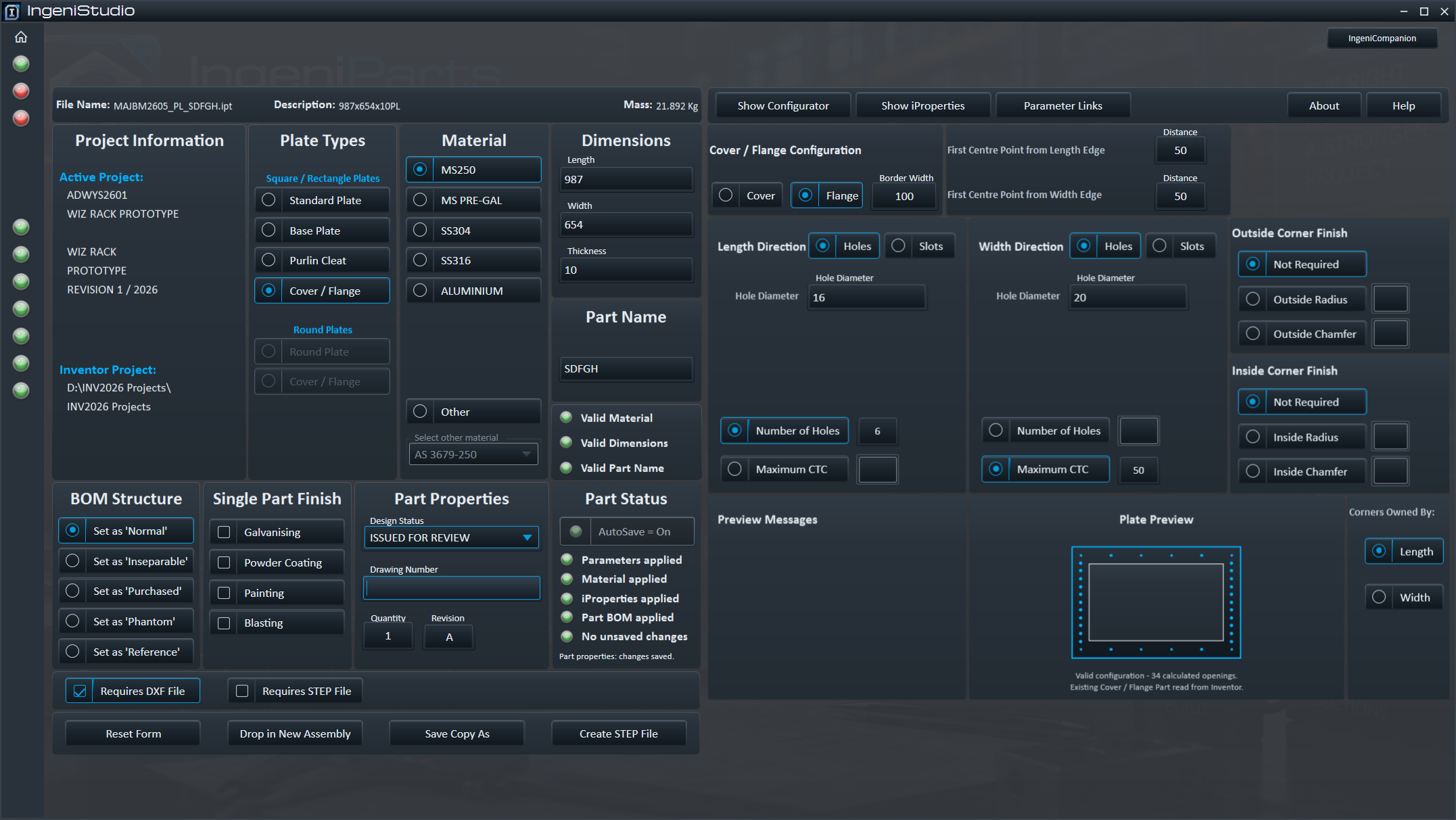
Create configured rectangular, round, Purlin Cleat and Cover / Flange plate types.
Steel Profiles
Create supported standard steel profiles using configured section data.
Other Profiles
Create configured Round Bar, Square Bar, Flat Bar and Round Tube parts.
Available part types, profile families, section sizes, materials and naming behaviour depend on the IngeniStudio and company configuration.
Creation area
Plates
Choose a configured plate type, then provide the dimensions and options relevant to that form.
Rectangular plates
Define the plate using length, width and thickness.
Round plates
Define the plate using diameter and thickness.
Purlin Cleats
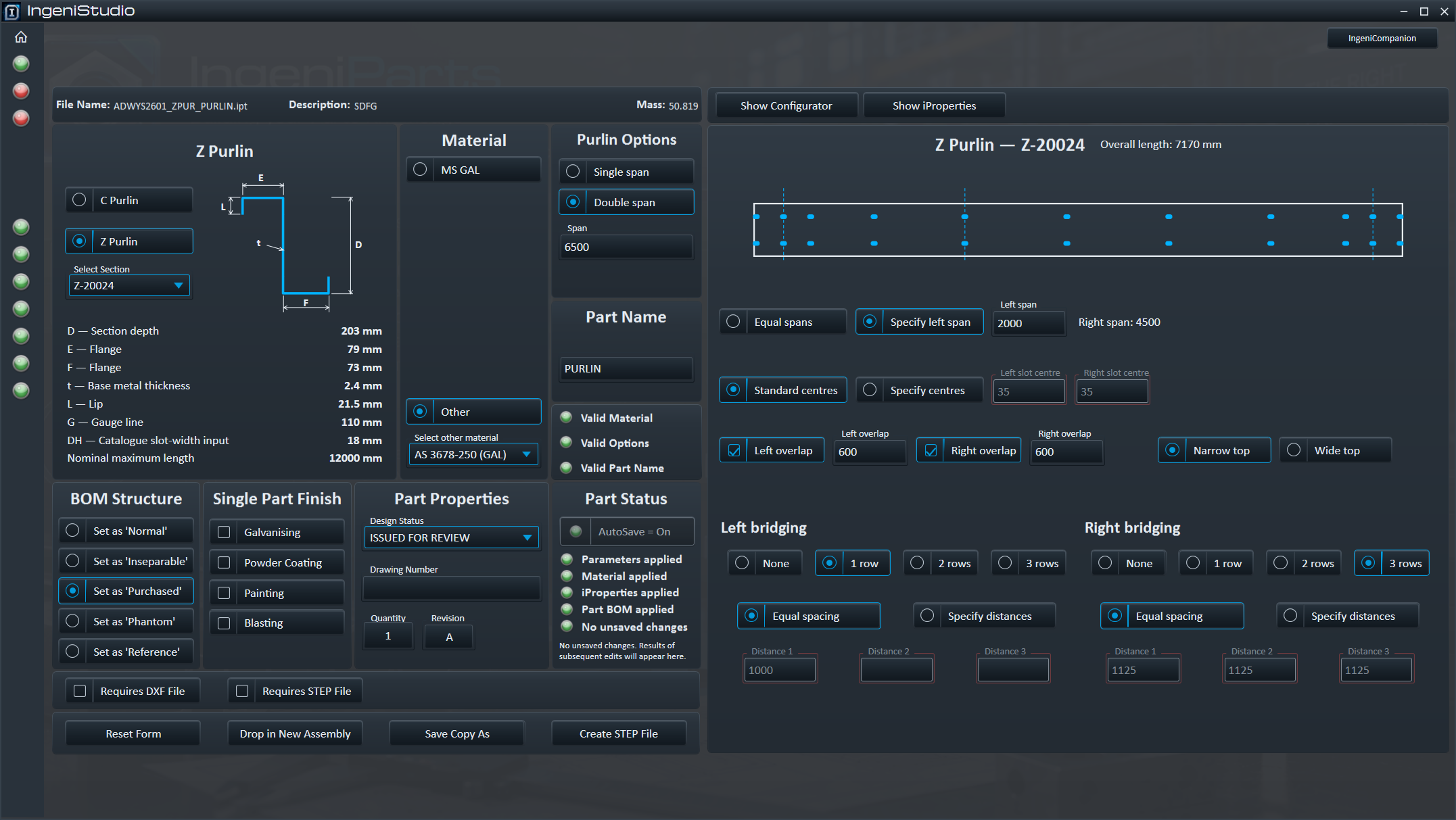
Configured Purlin Cleats can support single-purlin CHS and double-purlin SHS arrangements, configured purlin sizes, and the relevant cleat and hole dimensions.
Cover / Flange
Choose Cover or Flange and control applicable features including borders, holes or slots, openings, spacing, direction, orientation, edge distance, corner ownership and corner finish.
Creation area
Steel Profiles
Create supported standard steel profiles using the section data configured for your company.
- Select a profile family.
- Select an available section size.
- Enter the required length.
- Choose an applicable material.
For SHS and RHS, the interface also provides Cold Formed and Hot Rolled selection where applicable.
The currently enabled production profile data is based on Australian AS/NZS sections. IngeniParts is structured to support additional configured profile standards as they are added.
Creation area
Other Profiles
Create common configured bar and tube forms with the principal dimensions required by each type.
Round Bar
Enter diameter and length.
Square Bar
Enter section size and length, with applicable corner-radius control.
Flat Bar
Enter width, thickness and length, with applicable corner-radius control.
Round Tube
Enter outside diameter, wall thickness and length.
Supported part families
Pipe Flanges and Stanchions
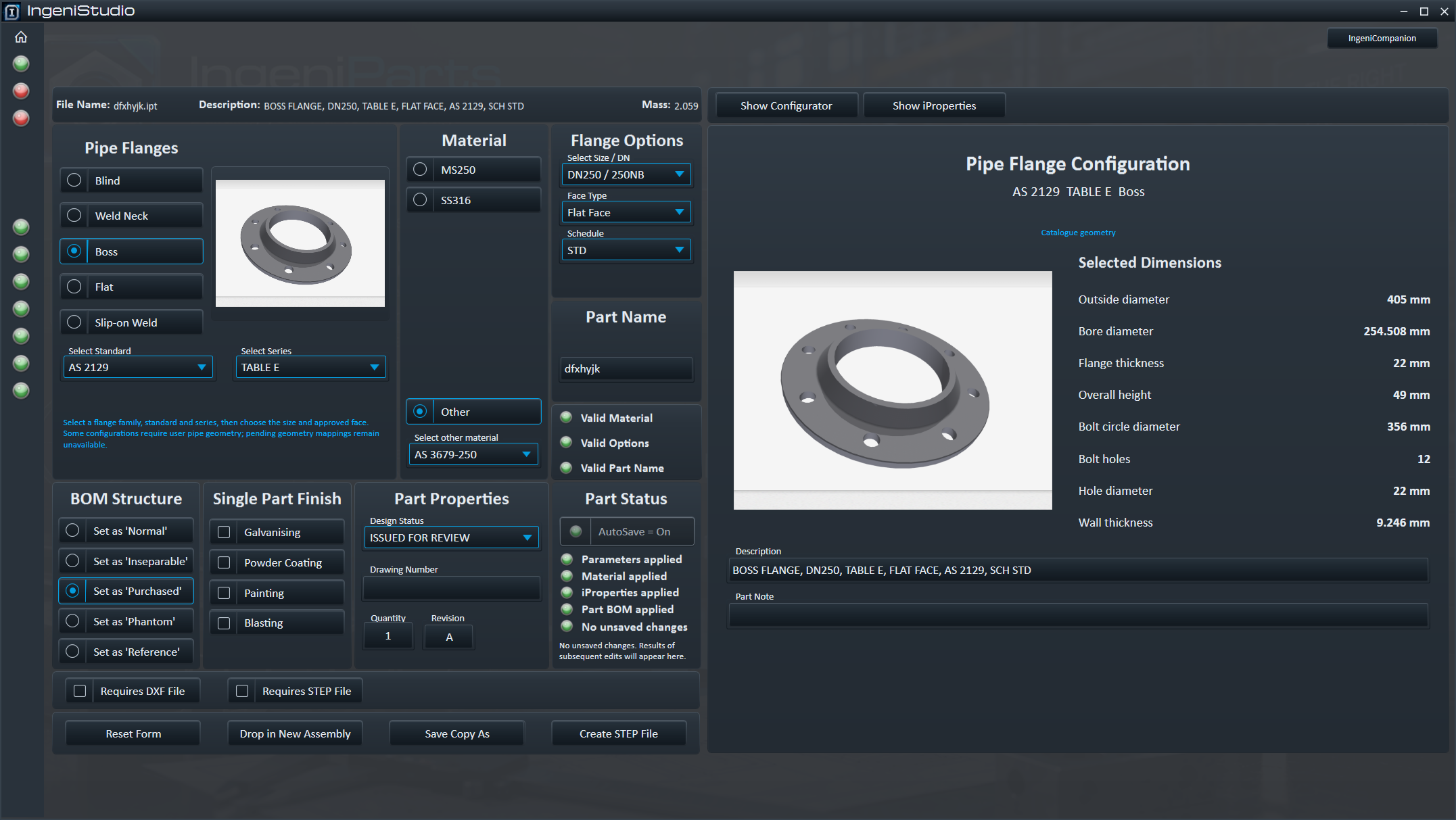
Pipe Flanges provides reference-based type, standard, series, size, face and applicable pipe-schedule choices. Creation depends on the selected record and required inputs; some configurations remain unavailable. Purchaser dimensions are requested where needed.
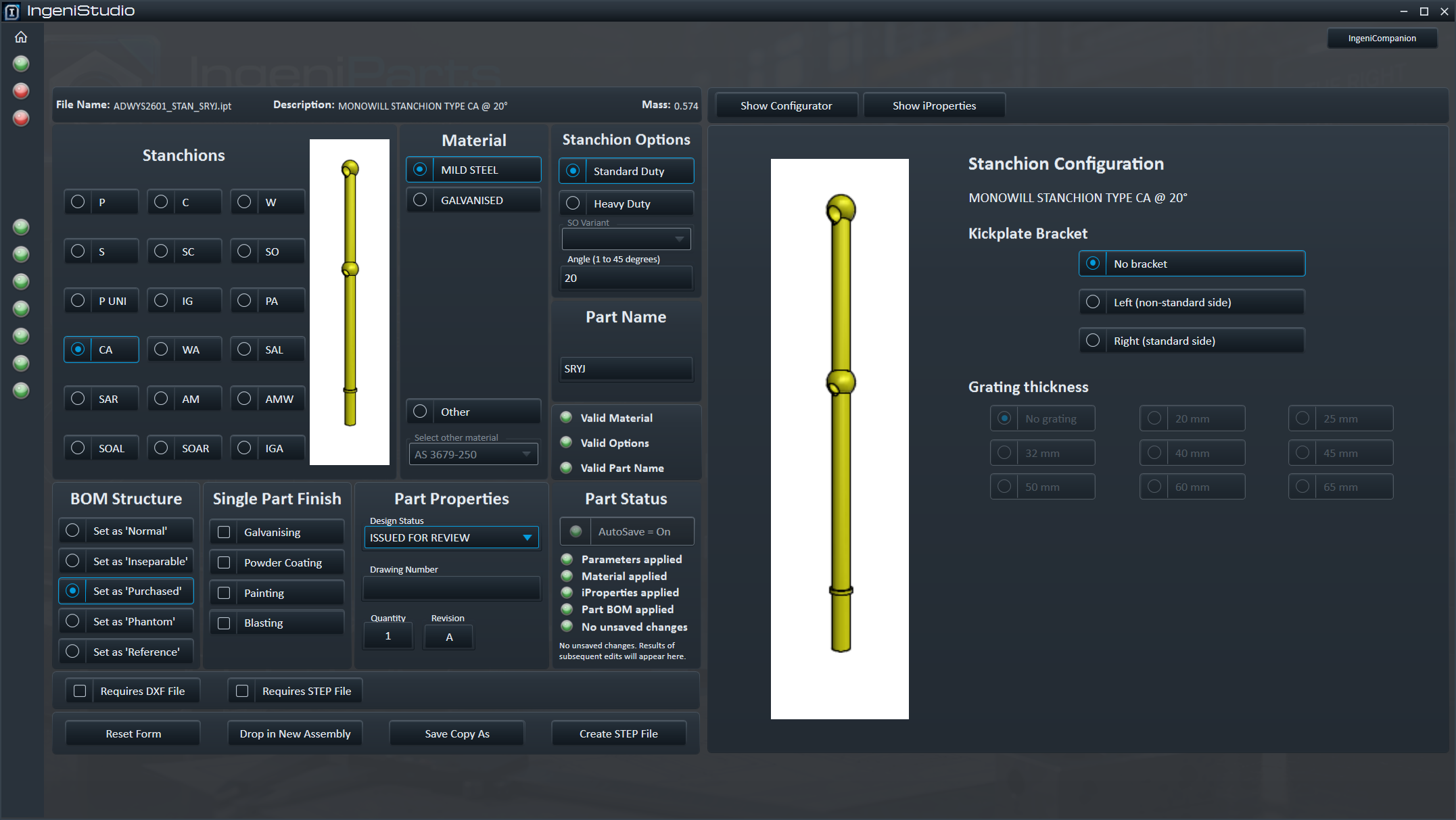
Stanchions provides supported catalogue types with applicable variant, duty, angle, bracket and grating choices. Material and shared property controls remain part of the workflow.
Available configurations depend on the supplied templates and reference data. A catalogue selection does not certify a part’s suitability for a particular engineering application.
Materials and properties
Set the Part Information
Complete the information needed for the part and choose from the material options provided by the configured workflow.
Choose the material
Select configured material presets or available Inventor materials where the workflow provides them. Available choices can vary by configured part or profile.
Record the details
- Part Name
- Design Status
- Drawing Number
- Quantity
- Revision
- BOM classification where applicable
Set the finish
For plates and steel profiles, finishing selections can include Galvanising, Powder Coating, Painting and Blasting.
IngeniParts validates required dimensions, selections and part information before creation.
Creation workflow
Create and Save the Part
- Choose the supported part family.
- Select the required type or profile.
- Enter the geometry.
- Choose the material and applicable settings.
- Enter the required part information.
- Choose Create New Part.
- Review or change the suggested filename and save location.
- Save the Autodesk Inventor
.iptpart file.
Where configured, IngeniParts uses the active project context and company naming settings to suggest the filename and initial save location.
Both the filename and folder can be reviewed and changed in the save dialog before the part is saved.
Module integration
Record the DXF Requirement
Carry the requirement forward without confusing part creation with DXF export.
IngeniParts can mark the created part as requiring DXF output. DXF generation itself is handled through IngeniDXF rather than during the IngeniParts creation workflow.
This keeps the part-creation and prepared DXF review/export workflows distinct.
Inside IngeniParts
Part Configuration Screens
Select a screenshot to see the detail.
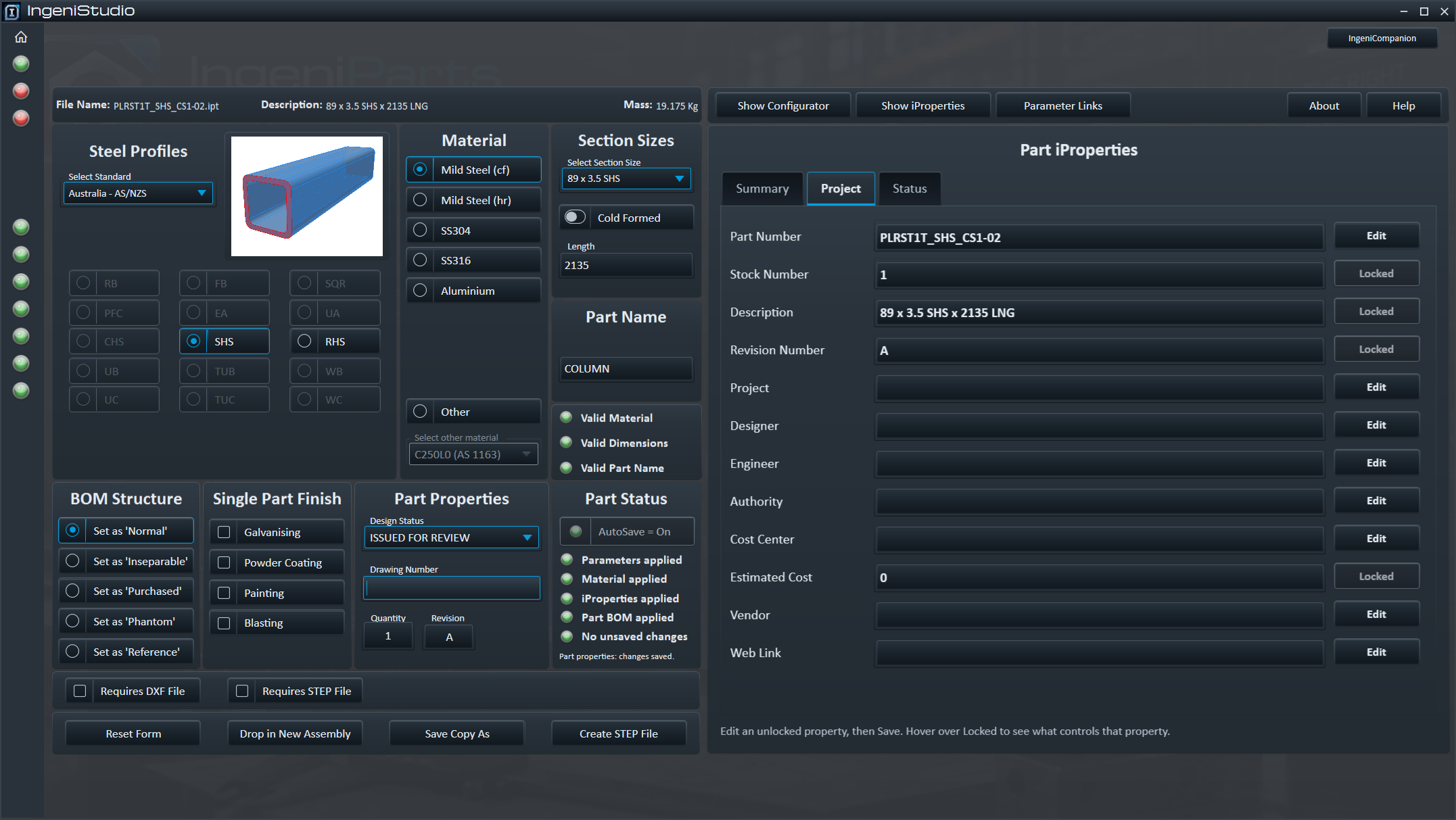
Materials and company conventions
Set Up the Choices Behind Part Creation
Use the Materials menu in IngeniParts to maintain supported family material choices and their Inventor material or catalogue associations.
Company description formats, design statuses, naming and other part defaults are configured in Company Standards. Review the previews, publish the intended version and assign it to the project before using it in supported workflows.
After creating or editing a part, check the native model and its save status. Some property or finishing changes still need to be saved in Inventor.
Supported follow-on work
Edit Supported Parts
Edit IngeniPart reads a supported part’s stored identity and configuration back into its matching form. Related Edit My Part and Edit My Assy workflows provide existing-document property editing.
Recognised supported parts
The editing workflow applies to supported parts carrying recognisable IngeniParts information. It is not a general-purpose editor for arbitrary Inventor part files.
iProperties and Parameter Links
Review company-controlled iProperty fields, compatible source and receiving parameters, and supported linking or formula actions. Linked parameters can restrict direct edits.
Continue working
Reset the form, save a copy, or place/drop the part into a new assembly after successful creation.